
Calibrite Display Plus HL
4.0Editor score
Measures up to 10000 nits
PROFILER software included
Supports Mini LED OLED displays
This guide compares the top 10 colorimeter for monitor calibration tools to help you choose the best device for accurate screen color and professional
Finding the right colorimeter for monitor calibration is essential for photographers, designers, and video editors who need precise color accuracy. Without proper calibration, your screen may display colors that do not match your final output, leading to costly mistakes and frustrated clients. This guide explores the leading tools available to ensure your display represents reality.
We evaluated ten top-rated colorimeters based on their sensor technology, software capabilities, ease of use, and support for modern display types like OLED and Mini LED. Each product was reviewed for its ability to deliver consistent results across different lighting conditions and workflow needs. Our analysis focuses on real-world performance and professional features.
Each pick highlights specific strengths such as speed, accuracy, or specialized workflows for photo and video. You will find options ranging from budget-friendly starters to high-end professional suites designed for critical grading tasks. Please note that pricing and availability can change frequently, so check the latest details before purchasing.
4.0Editor score

4.0Editor score

4.2Editor score
The following table provides a side-by-side comparison of all ten colorimeters reviewed in this guide. Use this overview to quickly identify key specifications and features that matter most to your specific calibration needs and display types.


The Calibrite Display 123 stands out as an excellent choice for creators who want reliable color accuracy without complex setup. It holds a strong rating and is praised for its guided workflow that simplifies calibration for photographers and designers alike. The device is compact and easy to store when not in use.
We may earn a commission when you buy through this link, at no additional cost to you.
Its standout quality is the guided 1 2 3 software workflow that makes calibration fast and approachable for users of all skill levels. The tool supports up to two displays, which is ideal for multi monitor setups where color consistency is critical for editing efficiency. Users can select brightness targets like Native or Photo to match their specific needs.
While the device is highly effective for general photo editing, it lacks some advanced features found in higher end models such as an ambient light sensor. This means you may need to manually adjust for room lighting changes. However, the built in before and after check helps confirm results quickly without extra tools.
This colorimeter is best suited for photographers and casual editors who need accurate color for their work without spending hours on calibration. It provides a solid balance of performance and simplicity. For those starting out or needing a reliable backup tool, this model offers great value and ease of use.
The guided setup process ensures you can calibrate your screen quickly, allowing more time for creative work instead of technical adjustments.
Supporting up to two displays ensures that your color remains consistent across different screens, which is vital for multi monitor editing environments.
We may earn a commission when you buy through this link, at no additional cost to you.
The Calibrite Display Plus HL is designed for professionals working with the latest high luminance displays such as Mini LED and OLED. It features an advanced HL sensor that measures up to 10000 nits, making it one of the few tools capable of accurately calibrating super bright HDR monitors. This ensures your work looks consistent on modern hardware.
We may earn a commission when you buy through this link, at no additional cost to you.
Its key strength lies in the PROFILER software which offers both basic and advanced modes for full control over white point, luminance, and gamma. The support for broadcast standards like Rec.709 and BT.1886 makes it suitable for video production pipelines. Validation tools like Quick Check and Uniformity Check help you trust your calibration results completely.
The device is more complex and expensive than entry level options, which might be overkill for casual users. It requires careful handling due to its advanced sensor and specific use cases. However, for video editors and colorists needing precision on bright displays, the investment pays off in reliable grading decisions.
If you work with HDR capable monitors or need to calibrate projectors and super bright screens, this tool is unmatched. It provides the precision required for professional video workflows. For standard office or home use, a simpler model may suffice, but for critical grading, this is a top choice.
The HL sensor ensures accurate measurements on displays that push brightness levels far beyond standard monitors, preventing washed out highlights.
Support for broadcast standards allows video professionals to maintain tonal detail and accurate monitoring across complex production pipelines.
We may earn a commission when you buy through this link, at no additional cost to you.
The datacolor Spyder offers a highly efficient calibration experience that takes only about 90 seconds to complete. It is designed for today's digital workflows and supports a wide range of displays including OLED and mini LED. The device focuses on ease of use without sacrificing professional results for everyday creators.
We may earn a commission when you buy through this link, at no additional cost to you.
Its ambient light sensor tracks room light to adjust brightness and contrast levels accordingly, ensuring consistency even when lighting changes. The exclusive DevicePreview feature simulates how your photos will look on other devices, helping you catch surprises before sharing. Intuitive software makes it accessible for novices while offering customization for pros.
While it lacks some deep customization options found in higher end kits, it covers the essentials well for most users. The software may feel simpler than advanced suites but it gets the job done reliably. The speed of calibration is a significant advantage for those who need frequent adjustments.
This tool is perfect for photographers and designers who need a straightforward solution that works with modern screens. It balances cost and performance effectively. If you want fast results without diving into complex settings, the Spyder is a strong candidate for your desktop.
The ambient light sensor helps maintain display accuracy by adjusting settings based on your room conditions automatically.
DevicePreview helps you see how your work will appear on different screens, reducing client revisions and color mismatches.
We may earn a commission when you buy through this link, at no additional cost to you.
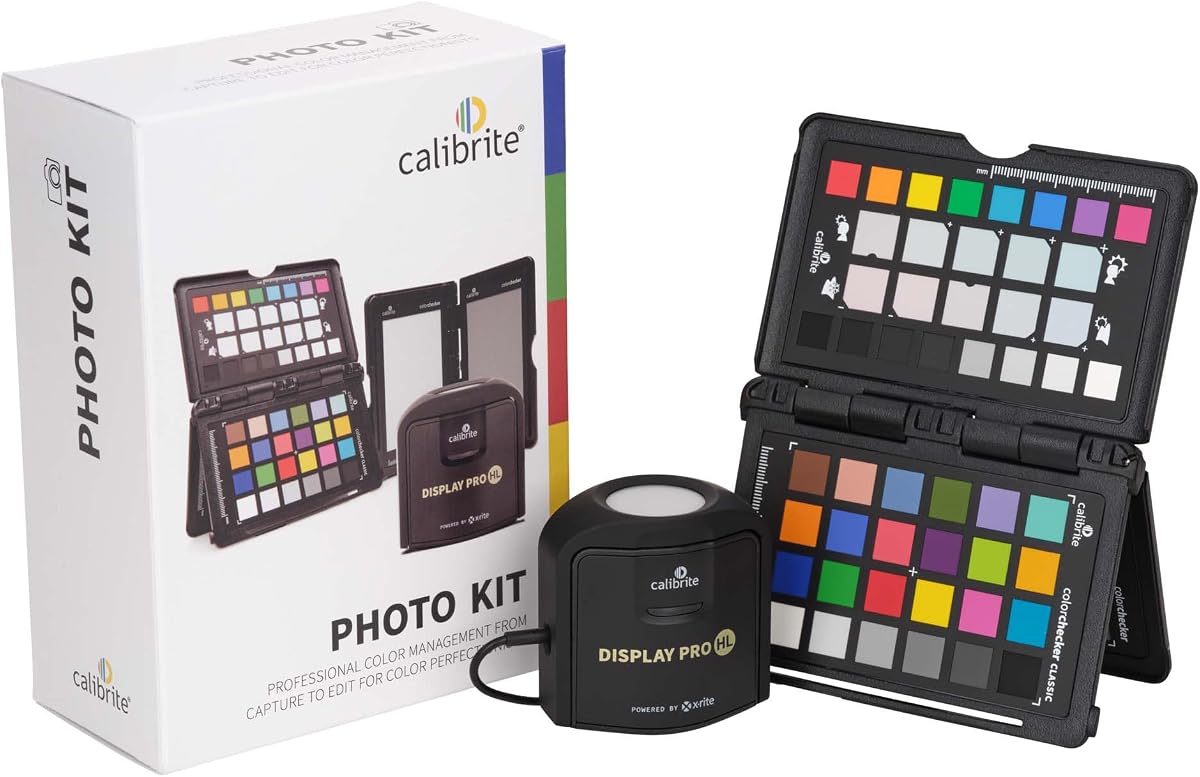
The Calibrite Photo Kit combines a high luminance monitor colorimeter with the ColorChecker Passport Photo 2 to create a seamless capture to edit workflow. It is ideal for photographers who want consistent color from the camera to the screen. The kit supports modern displays and custom camera profiles for RAW workflows.
We may earn a commission when you buy through this link, at no additional cost to you.
Its strength is in combining camera profiling and monitor calibration to reduce color guesswork and maintain reliable results across locations. The Display Pro HL ensures what you see while editing is close to final output. The passport tool enables custom profiles that improve repeatability and reduce unwanted shifts before retouching.
Using both tools together requires more time and effort than a single device, which may be too much for casual users. The cost is higher than buying a colorimeter alone. However, for professionals who need total color control, this comprehensive system provides unmatched confidence in every step of the process.
This kit is best for photographers who want a complete solution for color accuracy from shoot to export. It simplifies the workflow by linking camera and monitor data. If you shoot in RAW and need precise edits, this kit is a valuable investment.
By calibrating both camera and monitor, you ensure that the colors you capture match exactly what you edit.
Custom camera profiles help maintain consistent white balance and exposure reference across different lighting conditions.
We may earn a commission when you buy through this link, at no additional cost to you.
The Calibrite Creator Kit is tailored for content creators who work with both photography and video. It includes the Display 123 for monitor calibration and the ColorChecker Passport Video 2 for capture control. This setup helps establish a reliable color standard from on set capture to final post production.
We may earn a commission when you buy through this link, at no additional cost to you.
Its main advantage is helping hybrid shooters match multiple cameras and ensure consistent white point and exposure. The Display 123 provides an easy workflow so you can trust on screen color during editing. This reduces trial and error corrections and improves overall workflow efficiency for creative projects.
The kit is specifically optimized for video and hybrid workflows which might not be necessary for those focused purely on still photography. You may need to pair it with other tools for pure stills editing. However, for filmmakers who also shoot photos, it offers a streamlined experience.
If you create content for social media or professional video projects, this kit ensures your colors remain consistent across devices. It supports accurate results for both photo and video. For creators needing a unified system, this is a strong choice.
Video 2 helps set accurate white point and verify exposure, giving filmmakers a reliable reference on set.
With reliable color management, you can focus on storytelling rather than fixing color shifts during editing.
We may earn a commission when you buy through this link, at no additional cost to you.
The Calibrite ColorChecker Display Pro is known for its powerful and easy to use nature with ccProfiler or i1Profiler software. Its optical design allows for high repeatability on the same display and across different types. It is particularly useful for projector profiling in larger venues due to its integrated tripod mount.
We may earn a commission when you buy through this link, at no additional cost to you.
Its standout feature is the rotatable diffuser arm which can be used as a stand for tabletop projector profiling or as a cover. This flexibility makes it a robust tool for professionals who work with various display types. The design ensures consistent color profiling even under challenging conditions.
The software experience may feel less intuitive compared to newer consumer focused tools but offers robust features for pros. It is a heavier build which might be less portable for quick calibrations. However, for critical color management tasks, its reliability stands out.
If you work with projectors or need high precision across multiple displays, this tool delivers. It is a solid choice for technical environments. For standard monitor calibration, other tools might be faster, but for versatility, this one excels.
The diffuser arm and tripod mount allow you to adapt the tool for different calibration scenarios easily.
High repeatability ensures that your color measurements remain stable over time and across different screen technologies.
We may earn a commission when you buy through this link, at no additional cost to you.
The Datacolor Spyder5PRO is designed for serious photographers and designers who need accurate color accuracy. It offers room light monitoring to determine optimal monitor brightness so you see fine shadow detail. The full calibration process takes about five minutes to ensure your images match your prints.
We may earn a commission when you buy through this link, at no additional cost to you.
Its key strength is the Before and After evaluation using your own photographs to focus on details that matter to you. The Display Analysis feature lets you evaluate and compare the performance of all your monitors quickly. This helps save time in the print edit print cycle and reduce ink waste.
Since it is an older model, the software interface might feel dated compared to newer options. Support may not be as extensive as current models. However, for those who prefer a straightforward process focused on print accuracy, it remains a reliable tool for desktop and laptop displays.
If you prioritize print matching and simple calibration steps, this device serves you well. It ensures your edited images match your prints. For modern high refresh screens, newer tools might offer better support, but this one is solid for standard use.
Room light monitoring ensures your screen brightness is optimized to see fine shadow details accurately.
Compare monitor performance easily to ensure consistency across multiple devices in your setup.
We may earn a commission when you buy through this link, at no additional cost to you.
The ASUS ProArt CaliContrO is a 3-in-1 colorimeter that includes display OSD control and ASUS Dial features. It measures up to 10000 nits for precise HDR calibration and is compatible with ASUS exclusive software. The reversible USB-C connection provides quick connectivity for modern setups.
We may earn a commission when you buy through this link, at no additional cost to you.
Its main benefit is integrated hardware and software calibration via ASUS tools to keep long-term color accuracy. It offers a 5-way navigator for intuitive Display OSD control accessible within reach. However, it has received very low user ratings suggesting potential issues with stability or support.
The low rating indicates that users have experienced challenges with functionality or software compatibility. While it looks promising on paper for ASUS monitors, real-world performance may not meet expectations. You should consider other options unless you are deeply invested in the ASUS ecosystem.
If you use ASUS ProArt monitors and want integrated OSD control, this might be useful but proceed with caution. For general use, other tools offer more reliability. Check recent reviews before deciding to avoid potential headaches with setup.
The integrated colorimeter works with ASUS software for long-term accuracy and consistency across your monitors.
Shortcut keys and a dial provide quick control of creator software directly from the colorimeter device.
We may earn a commission when you buy through this link, at no additional cost to you.
The Datacolor Spyder4Pro is known for its improved accuracy and stability over previous generations. It features a full-spectrum color sensor and double-shielded color filters for a closer match to CIE color standards. It is designed for automated color and brightness calibration to reduce manual errors.
We may earn a commission when you buy through this link, at no additional cost to you.
Its standout feature is the ReCAL feature which makes it quick and easy to recalibrate your display to compensate for changes over time. The accuracy is up 26% compared to older models, and consistency between units is 19% better. This ensures reliable results for your display calibration.
Since it is an older model, it may not support the newest display technologies like Mini LED or OLED fully. Software updates might be limited compared to current tools. However, for standard LCD monitors, it remains a stable and dependable option for color management.
If you need a proven tool for standard monitors without breaking the bank, this model offers solid performance. Its calibration assistant helps maintain accuracy over time. Check compatibility with your screen before purchase to ensure it meets your needs.
Double-shielded filters ensure a closer match to CIE color standards for more accurate color representation.
The ReCAL feature lets you adjust your display settings quickly to account for aging or environmental changes.
We may earn a commission when you buy through this link, at no additional cost to you.
The Datacolor Spyder X Pro is ideal for first-time users who need accurate color for photographic images. It features a groundbreaking lens-based color engine for a higher level of accuracy across multiple monitors. Calibration takes just a minute or two, making it very quick to set up.
We may earn a commission when you buy through this link, at no additional cost to you.
Its strength is in its easy-to-use wizard workflow with 12 predefined calibration targets for advanced accuracy. Room light monitoring helps adjust automatic profile changing and precise screen color. SpyderProof functionality allows you to see the difference before and after using your own images to verify results.
While it is very easy to use, it may offer fewer customization options than professional suites. The price is higher than entry-level tools which might not fit every budget. However, for those who want a balance of speed and accuracy without learning curves, it is a top choice.
If you are new to calibration or want a tool that works reliably out of the box, this is a great pick. It ensures accurate color for photos with minimal effort. For quick and simple calibration, this tool stands out.
The intuitive setup requires no color expert knowledge, guiding you step by step to perfect calibration.
Room light monitoring ensures your display brightness matches your environment for true image viewing.
We may earn a commission when you buy through this link, at no additional cost to you.
Choosing the right colorimeter depends on your specific workflow, display type, and budget. This guide outlines key factors to consider to ensure you pick a tool that meets your needs.
Sensor technology determines how accurately the device reads color. Look for advanced sensors like HL for high luminance displays or full-spectrum sensors for better accuracy across colors.
Prioritize tools with proven sensor accuracy to avoid color shifts over time.
Check if the colorimeter supports your specific display type. Some tools are designed for standard LCDs while others handle Mini LED or OLED screens better.
Ensure compatibility with your monitors to get accurate readings.
The included software impacts how easy calibration is. Look for guided workflows, preset targets, and validation tools to simplify the process.
Choose software that matches your skill level and workflow needs.
Speed is important if you calibrate frequently. Some tools take only 90 seconds while others take five or ten minutes.
Fast calibration helps maintain accuracy without disrupting your work.
Room lighting affects your screen's appearance. Tools with ambient light sensors adjust brightness and contrast based on your environment.
This feature ensures consistency even when lighting changes.
If you use multiple monitors, look for colorimeters that support dual or multi-display calibration.
Matching colors across screens improves workflow efficiency.
Price varies from budget-friendly to premium. Consider if extra features like camera profiles or HDR support justify the cost.
Pick a tool that offers the best balance for your specific needs.
Portability matters if you work from different locations. Compact designs with travel cases are easier to carry around.
Check the device's size and weight before buying.
To start using your colorimeter, install the provided software and connect the device via USB. Follow the on-screen instructions to set up your profile and select calibration targets.
Place the colorimeter flat against the screen center without any direct light falling on it. Allow the device to warm up for a few minutes before starting the process.
Clean the sensor lens gently with a soft cloth to remove dust. Store the tool in its pouch to protect it from scratches and damage.
For professional work, calibrate every two weeks or monthly. For casual use, every month or two is sufficient. Regular calibration ensures consistent color accuracy over time.
Most colorimeters work with standard LCDs but check compatibility for OLED or Mini LED. Some tools have specific sensor ranges for high brightness displays.
Yes, each device comes with proprietary software or supports third-party apps. Install the recommended tool to access all features and calibration profiles.
Software calibration adjusts display settings via software, while hardware calibration uses the device's internal LUT. Hardware offers more precise control over color.
Not strictly but it helps maintain consistent color for documents and images. Casual users may skip it but professionals should always calibrate.
Yes, many tools support multi-display calibration. Some can handle two screens simultaneously while others require separate profiles.
We reviewed ten top colorimeters ranging from budget-friendly options to high-end professional tools. Our top picks include the Calibrite Display 123 for ease of use and the Display Plus HL for HDR support.
Consider your workflow needs and display types when choosing. Prioritize accuracy and ease of use to get the most value from your investment.
Remember that prices change frequently so check current details before buying. Pick the tool that best fits your specific calibration needs.