
Acer 4-in-1 USB C Hub
4.2Editor score
Dual 4K660Hz HDMI outputs
100W Power Delivery support
USB-A data transfer port
Compare the top dual HDMI monitor adapters for 2026 including USB-C USB-A and DisplayPort options for multi-screen setups on Windows and Mac.
Finding the right dual HDMI monitor adapter can transform your workspace by enabling multi-screen productivity. Whether you need to extend your desktop for coding or mirror screens for presentations, choosing the correct interface matters.
We compared ten leading adapters based on video resolution support, connection types, and compatibility with modern operating systems. Our analysis focuses on real-world performance data provided by manufacturers and verified user feedback patterns.
Each pick highlights specific strengths like 4K output or power delivery. Please note that product availability and pricing fluctuate frequently so always verify current details before making your final purchase decision online.
4.2Editor score
4.5Editor score

4.4Editor score
This table offers a side-by-side view of every adapter we evaluated. It helps you quickly identify which model matches your specific laptop ports and display resolution needs without reading long text descriptions.


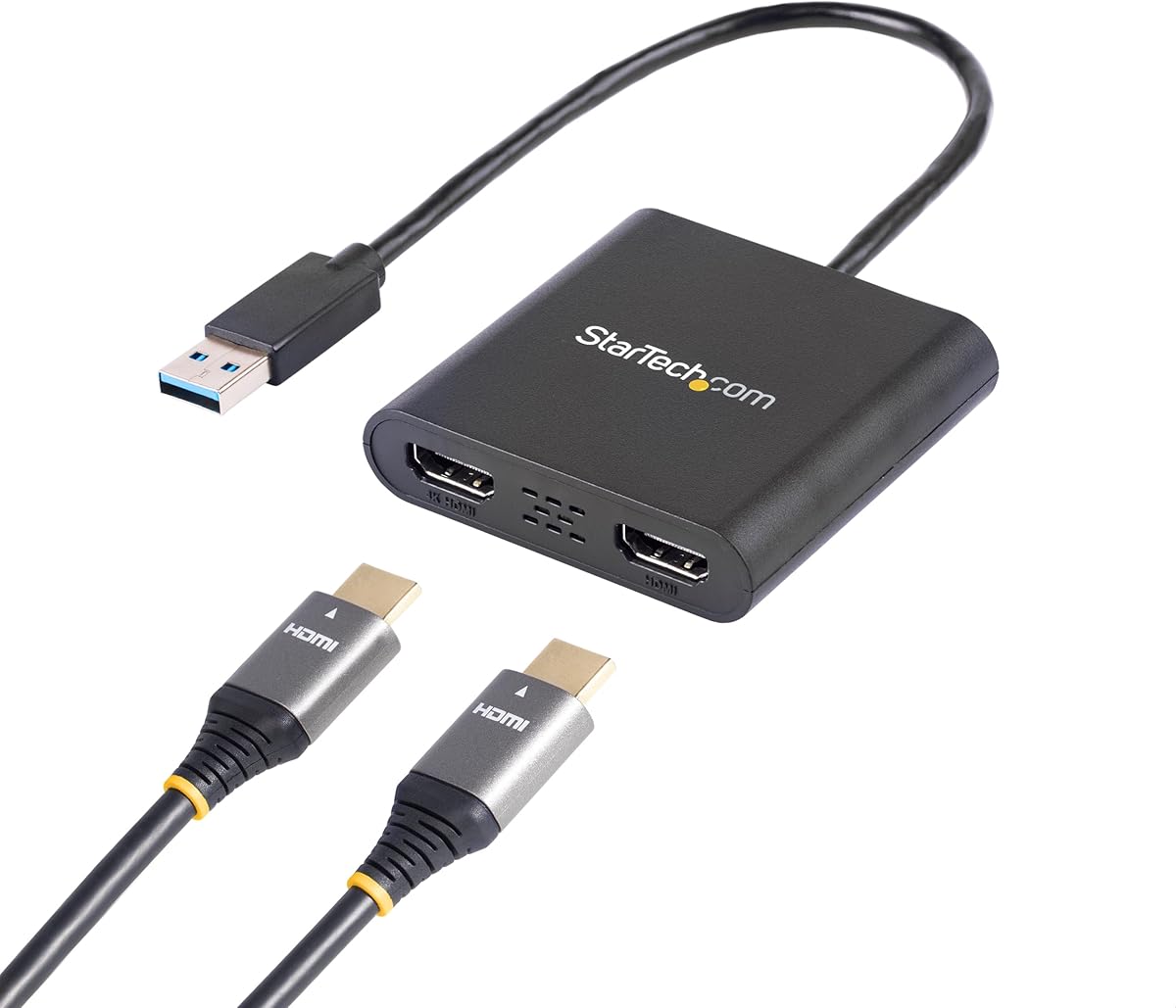
This adapter stands out as a reliable choice for Windows-only workstations needing dual screen extension. It holds a strong 4.5 rating from users who value stability over flashy features. The focus on enterprise reliability makes it a smart pick for business settings.
We may earn a commission when you buy through this link, at no additional cost to you.
It supports up to 4K at 30Hz on one screen and 1080p at 60Hz on the other via USB 3.0. You will need administrator rights to install drivers but this ensures secure integration with corporate systems. The 3-year warranty provides long-term peace of mind for IT managers.
The main trade-off is strict OS compatibility since it works only on Windows. Linux and ChromeOS users will need to look elsewhere for similar functionality. This limitation is acceptable if you are committed to a Windows ecosystem for productivity tasks.
Buy this if you need a dependable dual monitor solution for a Windows laptop or desktop. It is ideal for office work and coding but not for gaming due to refresh rate limits. Check current stock before ordering to ensure availability for your region.
Built for IT pros with multi-lingual 24/5 technical support and a robust driver package.
Extends your desktop to two HDMI monitors for better multitasking without needing extra ports.
We may earn a commission when you buy through this link, at no additional cost to you.
The Acer hub delivers brilliant dual 4K at 60Hz visuals for users who demand high clarity. It earns a 4.2 rating for its seamless integration with laptops that support DisplayPort Alternate Mode. This makes it a premium pick for modern thin and light devices.
We may earn a commission when you buy through this link, at no additional cost to you.
It includes a robust 100W power delivery port that charges your laptop while connecting displays. The USB-A port allows efficient file transfers so you stay productive without extra dongles. HDMI 2.0 support ensures vivid colors and smooth motion for media and work.
MacOS users should note that only mirroring is supported not extended dual screens. The cable is only 20cm long which may be tight for some desk setups. These are minor hurdles if you prioritize video quality and charging speed.
Choose this if you need fast charging and dual high-def displays on a USB-C laptop. It works well for data analysis and creative work where screen real estate matters. Verify your laptop supports DP Alt Mode before purchase.
Transfer files at 5Gbps while charging your host at a consistent 90W output.
All-in-one design covers video data and power without needing multiple adapters.
We may earn a commission when you buy through this link, at no additional cost to you.
This docking station offers exceptional value by combining dual HDMI outputs with SD card and USB ports. Users rate it 4.4 stars for its ability to transform a single USB-C port into a full desktop interface. It is a top budget pick for home office setups.
We may earn a commission when you buy through this link, at no additional cost to you.
It supports dual 4K at 60Hz on Windows laptops using MST technology. The 100W charging port keeps your device powered during long work sessions. A dedicated SD card reader helps photographers manage files directly without extra adapters.
MacOS users are limited to mirroring which restricts true dual-screen multitasking. You need a full-featured USB-C or Thunderbolt port for video to work. These constraints are acceptable given the low price and feature density.
Buy this if you want maximum connectivity on a budget for a USB-C laptop. It fits well for students and professionals needing a tidy workspace. Ensure your port supports video output before connecting to avoid issues.
Turn one laptop port into dual displays card card reader and multiple USB ports.
Input 100W power delivers 85W to keep your laptop charged while using all ports.
We may earn a commission when you buy through this link, at no additional cost to you.
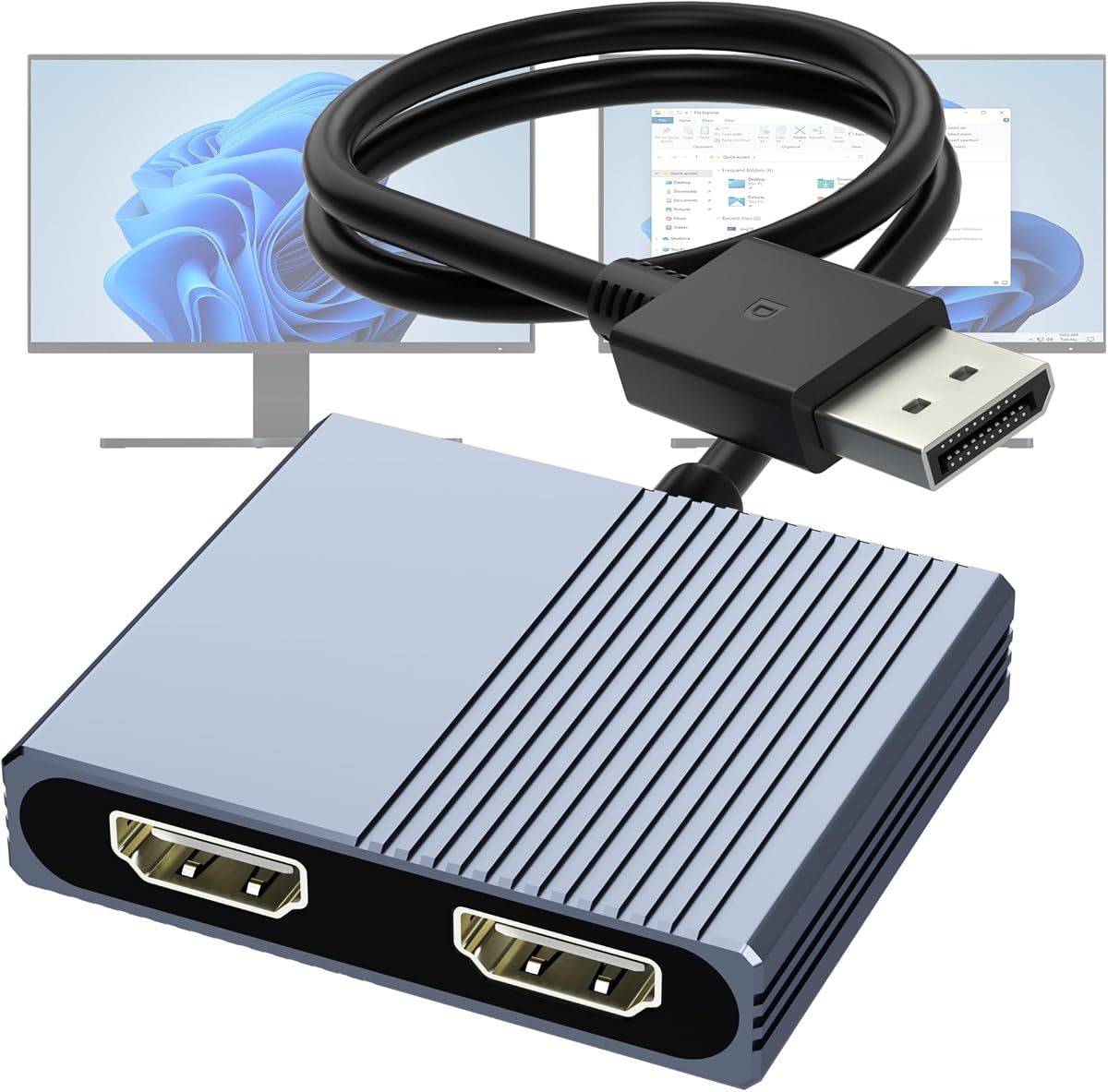
This adapter is designed specifically for desktops or laptops with dedicated DisplayPort outputs. It holds a 4.1 rating for delivering dual 4K at 60Hz without needing extra drivers. The focus on graphics card compatibility makes it a niche but powerful tool.
We may earn a commission when you buy through this link, at no additional cost to you.
It uses MST to extend your display across two HDMI screens simultaneously. You need to connect the included USB power cable to ensure stable signal transmission. The non-locking connector prevents accidental damage during setup changes.
It will not work with USB docking stations or KVM switches due to hardware limits. Integrated graphics may struggle so a dedicated GPU is recommended for best results. This makes it less versatile for ultrabooks but perfect for desktops.
Choose this if you have a DisplayPort equipped desktop or gaming laptop. It helps boost productivity by adding screens without opening the case. Verify your graphics card model before purchasing to ensure full support.
SST and MST modes allow flexible screen arrangement for enhanced workflow efficiency.
Built-in smart chip and shielding prevent interference for stable video transmission.
We may earn a commission when you buy through this link, at no additional cost to you.
This adapter offers flexibility with both USB-A and USB-C connections for various laptop types. It receives a 4.4 rating for supporting extended displays on both Windows and macOS. Users appreciate the 24-month warranty as a sign of confidence from the maker.
We may earn a commission when you buy through this link, at no additional cost to you.
It supports 1080p at 60Hz which is ideal for office apps like Docs and Office. You must install the latest driver for it to function so check your admin permissions first. It does not support HDCP protected content like streaming sites.
Gaming or graphic intensive work is not recommended due to refresh rate limits. The driver requirement adds a setup step that some users may find annoying. However this is a fair trade-off for the OS flexibility provided.
Buy this if you need a versatile adapter for different USB ports on your PC. It is great for general productivity but not for media playback on protected sites. Confirm your OS version matches driver requirements before buying.
Compatible with Windows macOS and Chrome OS for broad workplace usability.
Allows you to extend to two separate screens for better multitasking.
We may earn a commission when you buy through this link, at no additional cost to you.
This splitter allows you to connect a single source to two displays for extended viewing. It earns a 4.1 rating for its ability to boost productivity in a three-screen setup. The package includes a user manual and one-year support for reliability.
We may earn a commission when you buy through this link, at no additional cost to you.
It features an integrated USB-A to USB-C adapter to fit different laptop ports. You will need to install the Silicon Motion driver for it to work properly. An Intel i5 processor or higher is recommended for optimal performance stability.
The driver requirement means IT admin approval might be needed for work devices. Android users get mirroring only which limits utility on mobile setups. These are manageable issues if you have the right hardware environment.
Choose this if you want to add a second screen to a Windows laptop easily. It is best for office tasks and general computing. Ensure your processor meets the minimum requirement before ordering.
Integrated adapter supports both USB-A and USB-C for wider device compatibility.
Ideal for adding external monitors to a laptop setup for more workspace.
We may earn a commission when you buy through this link, at no additional cost to you.
This splitter is a simple solution for showing the same image on two screens at once. It holds a 4.1 rating for ease of use without needing any driver installation. It is perfect for presentations where mirroring is all you need.
We may earn a commission when you buy through this link, at no additional cost to you.
It supports up to 4K at 30Hz and syncs audio through the HDMI signal. You can connect it to a TV box game console or PC for dual output. This makes it a versatile tool for entertainment or basic office use.
You cannot extend your desktop to different content on each screen with this device. The 30Hz limit may feel slow for fast-paced content or gaming. However for static content or presentations it works perfectly well.
Buy this if you just need to mirror one source to two displays. It is the cheapest option for dual HDMI connections but lacks extended features. Check your display settings for best resolution output.
No drivers needed so you can start using it right away after plugging in.
Video and audio transmit together so no extra cables are needed for sound.
We may earn a commission when you buy through this link, at no additional cost to you.
This adapter is built for users with Thunderbolt ports who need high speed video. It earns a 4.5 rating for supporting dual 4K at 60Hz on Windows via MST. The compact design makes it a great portable choice for hybrid work.
We may earn a commission when you buy through this link, at no additional cost to you.
It features a 100W PD port to charge your laptop while using the USB ports. The USB-A port handles file transfers at 5Gbps for quick access to data. This combines essential features into a single small unit.
MacOS users are limited to mirroring only which restricts multi-monitor workflows. You must provide your own HDMI cable which is not included in the box. These are standard limits for multiport hubs in this price range.
Buy this if you have a Thunderbolt laptop and need dual screens at high refresh. It is excellent for professional work and media playback. Ensure your port supports full video output before connecting.
Thunderbolt connectivity ensures stable high resolution video without lag or delay.
PD port supports full speed charging so you never lose power while working.
We may earn a commission when you buy through this link, at no additional cost to you.
This hub is designed for desktop PCs with dedicated NVIDIA or AMD graphics cards. It holds a 4.4 rating for enabling dual extended displays with stunning clarity. The aluminum housing provides a rugged look and efficient heat dissipation.
We may earn a commission when you buy through this link, at no additional cost to you.
It supports DP 1.4 to deliver dual 4K at 60Hz with high precision. The gold plated ports ensure durable connections over many plug and unplug cycles. This makes it a reliable choice for permanent or semi-permanent setups.
Integrated graphics may not support extended mode so a dedicated GPU is needed. You also need a separate high quality DP cable for the connection to work. These requirements limit its use to full desktop systems mostly.
Choose this if you have a high end desktop with DisplayPort outputs. It helps turn a single port into two high resolution screens for work. Verify your graphics card model and cable specs before buying.
Aluminum alloy and gold plated connectors ensure long life and stable signals.
Supports SST and MST modes for true multi-screen productivity on Windows.
We may earn a commission when you buy through this link, at no additional cost to you.
This hub offers a compact design that fits easily into any laptop bag. It earns a 4.3 rating for being driver free and simple to set up. The 6-in-1 layout covers most needs for daily work without bulk.
We may earn a commission when you buy through this link, at no additional cost to you.
It supports dual 4K at 60Hz and includes three USB 2.0 ports for peripherals. The 100W power delivery keeps your laptop charged during long sessions. The short cable makes it ideal for portable use at coffee shops.
USB 2.0 ports are slower for data than USB 3.0 but work fine for keyboards. MacOS users face mirroring limits similar to other hubs in this class. These are acceptable compromises for the portability and price.
Buy this if you want a small reliable hub for travel or daily use. It works well for general office tasks and media. Verify your port supports DP Alt Mode before purchase.
Slim lightweight build fits in your bag and works without extra software.
Delivers crisp 4K visuals for smooth and vivid work or media viewing.
We may earn a commission when you buy through this link, at no additional cost to you.
Selecting the right adapter requires checking your laptop ports and OS limits. These factors will help you avoid compatibility issues and ensure a smooth setup.
Determine whether your laptop has USB-A USB-C or DisplayPort outputs. Some adapters only work with USB 3.0 while others need Thunderbolt or DP Alt Mode.
Match the adapter port to your available connection to prevent extra dongles.
Windows often supports extended multi-monitor modes via MST but macOS usually limits dual HDMI to mirroring. Check if the adapter works with your specific OS version.
Choose a Windows compatible model if you need true screen extension.
Look for 4K support at 60Hz if you need sharp details or smooth motion. Some budget models only offer 30Hz which may feel sluggish for active tasks.
Ensure your monitors and cables support the target resolution for best results.
Many USB-C hubs include PD ports to charge your laptop while using displays. This keeps your device powered during long sessions without extra chargers.
Verify the wattage matches your laptop requirements for stable charging.
Some adapters need driver installation to enable extended displays while others are plug and play. Consider IT policies if you use a work laptop.
Prefer driver-free options if you need quick setup without admin rights.
Aluminum housings and gold plated connectors help with heat dissipation and durability. A sturdy build ensures the adapter survives regular plugging and unplugging.
Invest in a metal model for long-term reliability.
Extra USB and card ports can reduce cable clutter on your desk. A hub with data and charging options provides better value than a single adapter.
Count how many devices you need to connect before choosing a model.
Short cables offer portability but may limit your desk layout options. Longer cables provide flexibility but add weight to your bag.
Measure your setup space to pick the right length for your needs.
Connect the adapter to your laptop using the appropriate cable. Ensure the cable is fully inserted for a stable signal. Then plug two HDMI cables into the adapter and connect them to your monitors.
Power on your monitors and adjust the display settings in your OS. You may need to select Extended or Mirror mode in the display menu to activate both screens correctly.
Keep the adapter cool by avoiding blocking vents. Store it in a protective case when traveling to prevent port damage. Regularly check for driver updates to maintain performance.
Many adapters support macOS but often only allow mirroring of screens. Extended display modes are typically limited to Windows systems. Always check the product details for Mac support before buying.
USB-C adapters offer higher data and video speeds like Thunderbolt support. USB-A adapters use older USB 3.0 tech and may have limits on resolution. Pick one that matches your laptop port.
Most adapters are not ideal for gaming due to refresh rate limits. They work better for office work or static content. Check for 60Hz support if you need smoother visuals.
Some adapters need driver installs to enable extended screens. Others are plug and play for immediate use. Check the product details to know if drivers are required.
Flicker can come from bad cables or insufficient power. Ensure your HDMI cables meet the needed standards. Try plugging the adapter into a powered USB port if it supports power.
Many USB-C adapters have PD ports to charge your device while in use. Confirm the wattage matches your laptop needs for stable charging. Not all models include this feature.
Most dual HDMI adapters connect two external displays plus your laptop screen. Some models only support mirroring on macOS for fewer options. Check the specs for your system.
Most adapters are not compatible with USB docking stations or KVM switches. They work best with direct laptop ports or dedicated GPUs. Check the manual for limits.
Our top picks cover a range of needs from premium 4K output to budget-friendly multiport hubs. Each model brings unique strengths for Windows or Mac users.
Prioritize connection type and resolution needs when picking a solution. A compatible adapter ensures smooth extended screens without extra hassle.
Verify current pricing and stock before buying as deals change often. This guide helps you find the right adapter for your workspace today.